
Find Hookshot graphics settings and record a baseline
Open the overlay with F1, select Graphics, and record your GPU and the Hookshot graphics settings you will compare: render resolution, quality preset, upscaler and frame cap. If your laptop has two adapters, check which GPU the game selected. Save in-game progress before accepting a setting that asks for a restart. The overlay stores its choices in hookshot_options.ini.
Match Hookshot graphics settings to the symptom
| What you see | First control to investigate | What to compare |
|---|---|---|
| The image fits the window but looks soft | Render resolution and upscaler quality | Fine edges at a stationary camera angle |
| The desktop shows around the game | Fullscreen or F11 | Window coverage without changing internal resolution |
| The picture looks stretched on a wide monitor | Ultrawide and display shape | World geometry and HUD separately after restart |
| Motion is uneven | Frame pacing and the game frame cap | Frame time during the same camera pan |
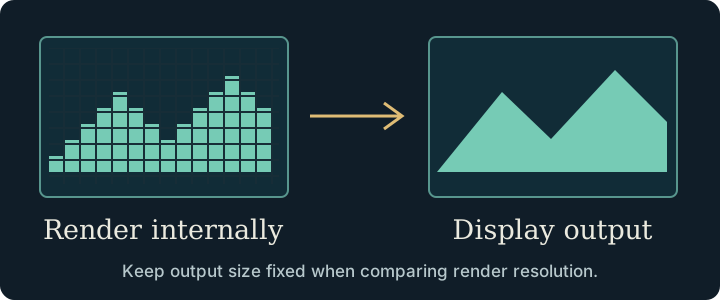
Hookshot graphics settings for upscaling and frame generation
An upscaler reconstructs an output image from a lower internal resolution. Start with a quality-oriented setting, then compare foliage and fine lines while moving. DLAA uses the NVIDIA path for antialiasing, while DLSS and FSR options depend on the available hardware and build. A missing vendor-specific option can be expected on another vendor's card.
Frame generation inserts display frames between rendered frames. Turn it off while diagnosing native performance, then turn it back on to judge motion and input response. If lowering render resolution changes little in the same scene, take the measurements to the low FPS guide before lowering every other option.
Verify Hookshot graphics settings after a restart
Suppose you select another GPU or change the display profile and the scene still looks the same. Read the help beside that option. The overlay identifies changes that take effect at the next launch and can offer a restart when you close it. Save your in-game progress before accepting. Return to the same camera position after the restart and confirm both the selected value and the visual result.
For HDR adjustments, first check whether HDR is active. The project shows paper-white and peak-brightness controls only in that mode. Missing rows can therefore say something about the current mode or the selected device. Record those before resetting the entire configuration.
Frequently asked questions
Does a higher frame cap do the same thing as frame generation?
The cap limits the rate of rendered game frames. Frame generation adds displayed frames between rendered ones. Keep both values in your notes if you compare smoothness across configurations.
Which image should I compare when testing an upscaler?
Use the same scene, output size and camera angle. Check a stationary detail first, then pan slowly across fine edges. A mode can preserve a readable sign while changing the appearance of moving foliage.
Which Hookshot graphics settings does a preset change?
A quality preset changes a collection of underlying settings. Take a screenshot or note the values you care about before applying one. Check the maintainer's menu reference for settings that depend on a restart, HDR mode or GPU support. If the screen goes blank after a change, use the display recovery steps.
Why is the DLSS model selector missing in my Hookshot graphics settings?
The menu hides options unavailable on the selected hardware and driver. Check the active GPU and available upscaling choices before reinstalling the game.