
Find the official Hookshot download
Open NotRexed’s latest release and expand Assets. Check the owner and repository name in the address bar. For a first installation, use the release marked Latest. A pre-release or development build makes sense when you are testing a particular change and can keep a separate backup.
Which Hookshot download belongs on your PC?
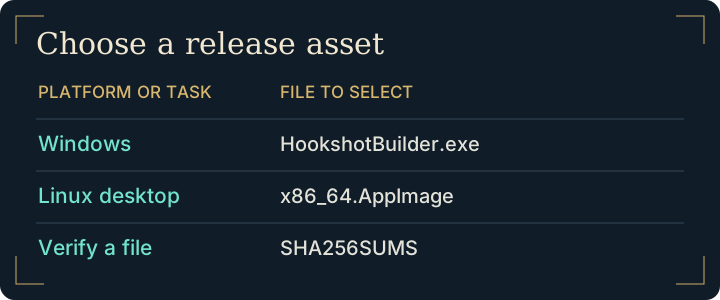
| Release asset | When to choose it |
|---|---|
HookshotBuilder.exe | Normal Windows installation. This small program retrieves and checks the remaining builder components. |
Hookshot-…-x86_64.AppImage | Native Linux builder. The version in the middle of the name can change. |
SHA256SUMS | Use the line for your exact filename to check the bytes you received. |
.txt manifests and .zsync | Metadata used by installation or update tools. They support the Hookshot download and update process. You do not launch them yourself. |
| Windows x64 ZIP | Alternate Windows package. For the normal first install, follow the release’s Windows download link to the EXE. |
| Source code archives | For someone inspecting or developing the project. A source archive alone will not launch the desktop installer. |
Verify the Hookshot download
- Keep the asset and the checksum list from the same release together. A matching filename from another release can have a different digest.
- On Windows, open PowerShell in that directory and run
Get-FileHash .\HookshotBuilder.exe -Algorithm SHA256. On Linux, typesha256sumfollowed by a space and the exact AppImage filename. - Compare the entire result with its entry in the publisher’s list. If they differ, discard that copy and fetch it again from the official release. A matching digest confirms that your Hookshot download matches the bytes listed by the publisher.
From a verified Hookshot download to first launch
Follow the Windows installation walkthrough or Linux setup guide. If you already have the tool open and it is asking for a game input, continue with using the builder. For an existing installation, check the update procedure before downloading a second copy.
Resolve a Hookshot download checksum mismatch
Suppose there are two files named HookshotBuilder.exe in different download folders. The filename alone cannot tell you which release either one came from. Open the release page you used, note its tag, and put the intended file and that release’s checksum list in one folder. Hash the file in that folder. On Windows, the value to compare is in PowerShell’s Hash column. On Linux, sha256sum prints the digest before the filename.
If the digest matches a different line in the list, read that line's filename. You may have selected the Windows archive instead of the bootstrapper. If the digest matches no line, return to the same official release and download the single asset again. Keep the two copies apart until you know which one matches. A verified Hookshot download is ready for installation; game compatibility is checked later by the builder.
Frequently asked questions
Which checksum should I use for the Windows Hookshot download?
Each asset has its own digest. The EXE and the ZIP may come from the same release while containing different bytes. Use the checksum line naming the file you actually downloaded.
Why does the small installer download more files?
The Windows bootstrapper retrieves the builder components. Keep the connection available until the builder opens its game-selection screen. If setup stops earlier, record the component or verification error before checking your game files.
Does a Hookshot download require every file under Assets?
No. For example, a Windows player who sees a ZIP, an AppImage and a small EXE can start with the EXE alone. The project’s Windows instructions describe what it retrieves. No Hookshot download includes the game.
What does a pre-release label mean for a Hookshot download?
It identifies a testing release. Use its notes to decide whether a particular fix is worth testing. The latest stable release is the simpler choice for a first build.